Scan Long Receipts on iPhone: A Guide to Perfect Scans
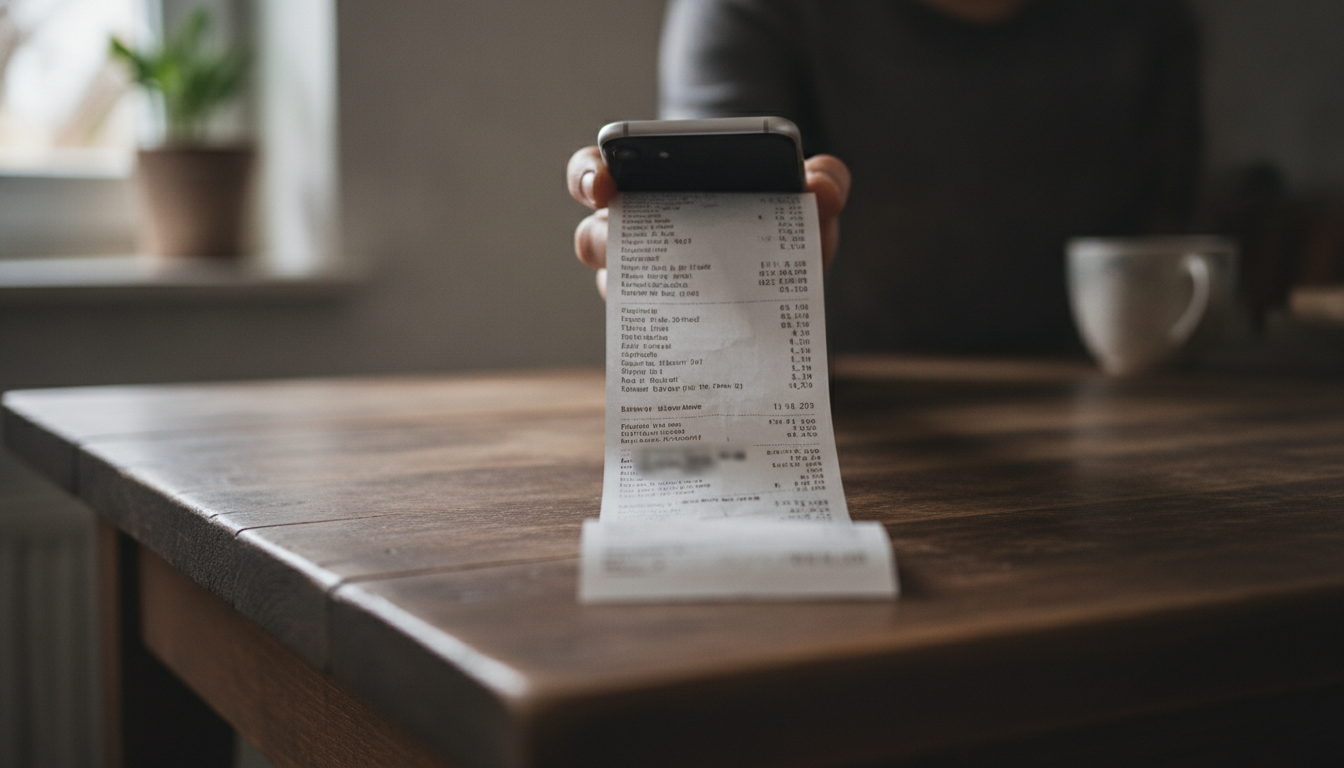
TL;DR: Don't fight with that never-ending Kassenbon. Use your iPhone's camera and a smart app like Costmanager.online's multi-photo feature to capture long receipts in sections. Good lighting, a flat surface, and careful alignment are key. Our app then uses Google's Gemini AI to accurately read even faded text and cryptic abbreviations, turning your shopping data into clear insights.
You just finished a big weekly shop at Aldi or Carrefour, and the receipt — a thermal paper scroll that feels like it’s a meter long — is now crumpled at the bottom of your shopping bag. You pull it out, try to smooth it, and remember last time you attempted to photograph one this size: half the items were cut off, the VAT lines (IVA/MwSt/TVA) were blurry, and that important 'MOZZ BBL' abbreviation remained a mystery. It's a common headache for anyone trying to track their grocery spending, especially when you're dealing with those epic supermarket slips from places like Rewe or Esselunga.
Trying to fit a 40cm receipt into a single iPhone photo is a recipe for disaster. You end up with tiny, unreadable text, blurry sections, or worse, half the receipt missing. This isn't just annoying; it makes it impossible for any receipt scanning app to accurately record your purchases, leaving gaps in your spending insights. But it doesn't have to be this way. With the right technique and a smart app, scanning even the longest supermarket receipt on your iPhone can be quick and painless.
The Long Receipt Problem: Why It's Tricky to Scan Long Receipts iPhone
Long receipts pose unique challenges that a single, quick photo simply can't overcome. Here's why:
- Too Much Information: Modern supermarket receipts list dozens of items, often with specific quantities, prices, discounts, and loyalty card details. All this crammed onto a narrow strip means tiny fonts and dense layouts.
- Physical Limitations: Your iPhone camera has a fixed field of view. To capture an entire long receipt in one go, you'd have to hold your phone so far away that the text becomes microscopic and unreadable. Zooming in only captures a portion, leaving you to stitch photos together manually – a tedious task.
- Paper Quality: Thermal paper, common for receipts, can be thin, prone to curling, and notoriously prone to fading. Older receipts might have entire sections that are barely visible, making them difficult for even the best OCR (Optical Character Recognition) to parse.
- Abbreviations: Supermarkets love their cryptic abbreviations. 'MOZZ BBL' for Mozzarella Buffalo, 'BRT KSE' for Butterkäse, or 'ORNG JC 1L' for Orange Juice 1 Litre. Without context, these are hard for humans and generic OCR to understand.
The good news is, you don't need a professional photography studio or an advanced degree in deciphering grocery hieroglyphs. You just need a methodical approach and an app designed to handle these real-world challenges.
Before You Scan: Essential Prep Work for Any Receipt
Before you even open your camera app, a little preparation goes a long way towards a perfect scan.
Keep Receipts Flat and Clean
A crumpled receipt is an OCR nightmare. Spend a few seconds smoothing it out. Ironing it gently (on low heat, no steam!) can work wonders for severely wrinkled thermal paper, but usually, just pressing it under a heavy book for a minute or two is enough. Make sure there's no stray debris, crumbs, or liquid spills on the receipt.
Mind the Lighting
Good, even lighting is your best friend. Natural daylight is ideal. If you're indoors, use a well-lit room, but avoid direct overhead lights that can cause harsh shadows or reflections on shiny thermal paper. Position the receipt so light falls evenly across its entire surface. Avoid using your phone's flash if you can; it often creates glare spots that obscure text.
Background Matters
Place your receipt on a plain, dark, contrasting surface. A wooden table, a dark placemat, or even a sheet of dark paper works well. This helps your camera (and the app's AI) clearly distinguish the edges of the receipt, preventing accidental cropping and ensuring the entire document is captured.
Step-by-Step: How to Capture Long Receipts with Multi-Photo Apps
This is where dedicated receipt scanning apps like Costmanager.online truly shine. Instead of trying to cram everything into one photo, they let you take multiple, overlapping shots that are then intelligently stitched together. This feature is specifically designed for long receipts.
- Open Your Scanning App: Launch Costmanager.online and select the 'Scan Receipt' option.
- Start the Multi-Photo Capture: Our app is designed to handle long receipts automatically. You'll typically be guided to take multiple photos for longer slips.
- Take Your First Photo: Place the top portion of your receipt flat on a contrasting surface. Hold your iPhone directly above it, ensuring the entire width of the receipt is visible and a small portion of the length extends beyond the visible frame. The app will guide you to capture the first section clearly.
- Align and Capture the Next Section: After the first shot, you'll slide the receipt down slightly, ensuring there's an overlap with the previously captured section. The app will often provide an overlay or guide to help you align the next photo perfectly. This overlap is important for the stitching process.
- Continue Until the End: Repeat the process, capturing each subsequent section with a slight overlap, until you've photographed the entire length of the receipt.
- Review and Confirm: Once all sections are captured, the app stitches them together into one complete image. You'll get a chance to review the combined image. Check for clarity, completeness, and any missed sections. If something looks off, you can usually retake specific parts.
- Submit for Processing: Once you're happy, submit the receipt. Costmanager.online uses Google's Gemini AI service to read receipt images and PDFs by default. This powerful AI is excellent at processing complex layouts, varied fonts, and even dealing with faded or slightly blurry text. Built-in on-device OCR is only used as a fallback for genuine reading-service failures, and even then, fallback product translation and categorisation may still use Gemini for accuracy. Your data isn't saved to your account until you review and approve it, and we never sell your data.
Common Scanning Mistakes and How to Fix Them
Even with the best intentions, things can go wrong. Here's how to troubleshoot common issues:
Blurry Images
If your images are blurry, it's usually due to shaky hands or insufficient light. Keep your iPhone steady, perhaps resting your elbows on the table. Make sure there's enough light, and that your camera's lens is clean. A quick wipe with a soft cloth can make a surprising difference.
Cropped Edges
This often happens if you hold your phone too close or don't use a contrasting background. Step back a little, ensure the entire width of the receipt is visible in the frame, and use that dark, plain background to help the app identify the receipt's boundaries.
Glare and Shadows
Glare comes from direct, harsh light reflecting off the thermal paper. Shadows are caused by uneven lighting or your hand/phone casting a shadow. Adjust your position relative to the light source. If you're near a window, try scanning parallel to it rather than facing it. Avoid using your phone's flash if possible.
Faded Text
Old, faded thermal paper receipts are tough. While Costmanager.online's Gemini AI is highly advanced at extracting information from challenging images, there are limits. Sometimes, increasing the contrast slightly with a photo editing tool *before* scanning can help, but often, the best solution is to get it into the app as soon as possible after purchase, before fading worsens.
Abbreviated Items (MOZZ BBL)
This is where the power of advanced AI comes in. While you might scratch your head at 'KRTOFL' (Kartoffel/Potato) or 'HÜHN FLSCH' (Hühnerfleisch/Chicken Meat), our backend AI processes millions of receipts from European supermarkets. It's trained to understand common abbreviations and translate them into full, recognisable product names, ensuring your spending categories are accurate. So, 'MOZZ BBL' becomes 'Mozzarella Buffalo' in your itemised list, not just a cryptic entry.
The AI Difference: Why Costmanager.online Excels with Long Receipts
Many apps offer basic receipt scanning, but Costmanager.online takes it further, especially for long, complex European supermarket receipts. Our reliance on Google's Gemini AI for processing means:
- Superior Accuracy: Gemini AI is incredibly good at reading even challenging receipts. It handles variations in fonts, layouts, and print quality far better than simple OCR. This means fewer errors and more accurate data for you.
- Intelligent Item Recognition: Beyond just reading text, the AI understands context. It can differentiate between a product name, a price, a discount, and VAT lines. It also learns common European product names and abbreviations, ensuring 'GORGZOLA' is correctly identified as Gorgonzola cheese, even if partially faded.
- Data Privacy and Control: We know your spending data is sensitive. When you scan a receipt with Costmanager.online, the images are sent to Google's Gemini AI for processing. Nothing is saved to your account until you review and approve the extracted data. This gives you full control. Your data is never sold, and it's securely processed. While the service is cloud-based, we prioritize your privacy and security. You can learn more about how to scan your receipts at costmanager.online/scanner.
Here’s a quick look at why a smart app with AI is the best solution:
| Feature | Manual Entry | Basic Scanning App | Costmanager.online (AI-powered) |
|---|---|---|---|
| Speed for Long Receipts | Very Slow | Slow (manual stitching/corrections) | Fast (multi-photo, automatic stitching, AI processing) |
| Accuracy of Item Details | High (if careful) | Moderate (OCR errors, poor with abbreviations) | Very High (advanced AI, context awareness, handles abbreviations) |
| Handling Faded Text | Difficult | Poor | Good (AI trained for challenging images) |
| Categorisation | Manual & tedious | Basic (often requires manual correction) | Automatic & intelligent (learns your habits) |
| Price Tracking | Manual | Limited | Automatic, item-level, historical data |
| Effort Required | High | Medium | Low |
Beyond Scanning: What You Get with Costmanager.online
Scanning receipts is just the first step. Costmanager.online transforms those long, intimidating paper slips into actionable financial insights:
- Item-Level Spending Insights: See exactly what you spend by category (e.g., 'Dairy', 'Produce', 'Household'), not just total shop amounts. This helps you understand where your money really goes. Want to dive deeper into your spending habits? Read our article on Understanding Your Spending by Category.
- Price History Per Product: Ever wondered if that 'promo' price at Lidl is actually good? Our app tracks the price of individual products across different shops over time. You’ll know if you're getting a deal or just clever marketing.
- Smart Shopping List: Build your list, and the app tells you which local shop has the cheapest overall basket, saving you money on every trip.
- Pro Features for Serious Savers: Upgrade to Pro (€4.99/month after a 3-month free trial) for advanced budgeting tools, price alerts when your favourite products drop in price, a barcode scanner to check prices on the go, and restock reminders. You can also export your data as a CSV for detailed analysis.
Costmanager.online isn't just a receipt scanner; it's your personal grocery finance assistant, built to help real shoppers in Europe save money and time. Check out all the features at costmanager.online. For more tips on managing your groceries, explore our articles like How to Track Grocery Spending Effectively.
Key Takeaways for Flawless Receipt Scanning
- Always smooth out your receipt and place it on a clean, dark, contrasting surface.
- Use natural, even lighting; avoid glare and harsh shadows.
- Utilise your scanning app's multi-photo feature for long receipts, ensuring a slight overlap between sections.
- Review the stitched image for clarity and completeness before submitting.
- Trust that advanced AI, like Costmanager.online's Gemini integration, can handle faded text and cryptic abbreviations better than you can!
- Remember that data is processed securely by AI, reviewed by you, and never sold.
Don't Let Long Receipts Hold You Back
Scanning long supermarket receipts on your iPhone doesn't have to be a chore. With a little care in preparing your receipt and using the multi-photo capabilities of an app like Costmanager.online, you can capture every detail accurately. This opens up a world of spending insights, price comparisons, and money-saving opportunities that a crumpled paper receipt simply can't provide. Take control of your grocery budget, one perfectly scanned receipt at a time.
Frequently asked questions
Why do my long receipts often turn out blurry or incomplete when I try to scan them with my iPhone?
Long receipts are challenging because they contain a lot of small text and are often printed on flimsy thermal paper. A single photo can't capture all the detail without making the text unreadable, and trying to fit it all often results in blurry images or cropped sections due to poor lighting, unsteady hands, or not using a dedicated multi-photo scanning feature.
What's the best way to prepare a very long or crumpled receipt before scanning with my iPhone?
First, gently smooth out any creases in the receipt, perhaps by pressing it under a book. Then, place it on a flat, plain, dark surface to provide good contrast. Ensure you have ample, even lighting, preferably natural light, to minimise shadows and glare, which will help the camera and the AI capture clear text.
How does Costmanager.online handle really faded receipts or those with strange supermarket abbreviations?
Costmanager.online leverages Google's Gemini AI service to process your receipt images. This advanced AI is highly skilled at reading challenging documents, including those with faded text or complex layouts. It's also trained on millions of European receipts to understand and translate common supermarket abbreviations into full product names, ensuring accurate data capture even from difficult receipts.
Is my data safe when I scan receipts using an app that sends images to AI for processing?
Yes, with Costmanager.online, your data is handled with care. Receipt images are sent to Google's Gemini AI for processing. Crucially, nothing is saved to your personal account until you have reviewed and approved the extracted information. We never sell your data, ensuring your privacy and giving you control over what information is ultimately stored.